
Browse Mac apps for iPhone and iPad
Keep an eye on the scene
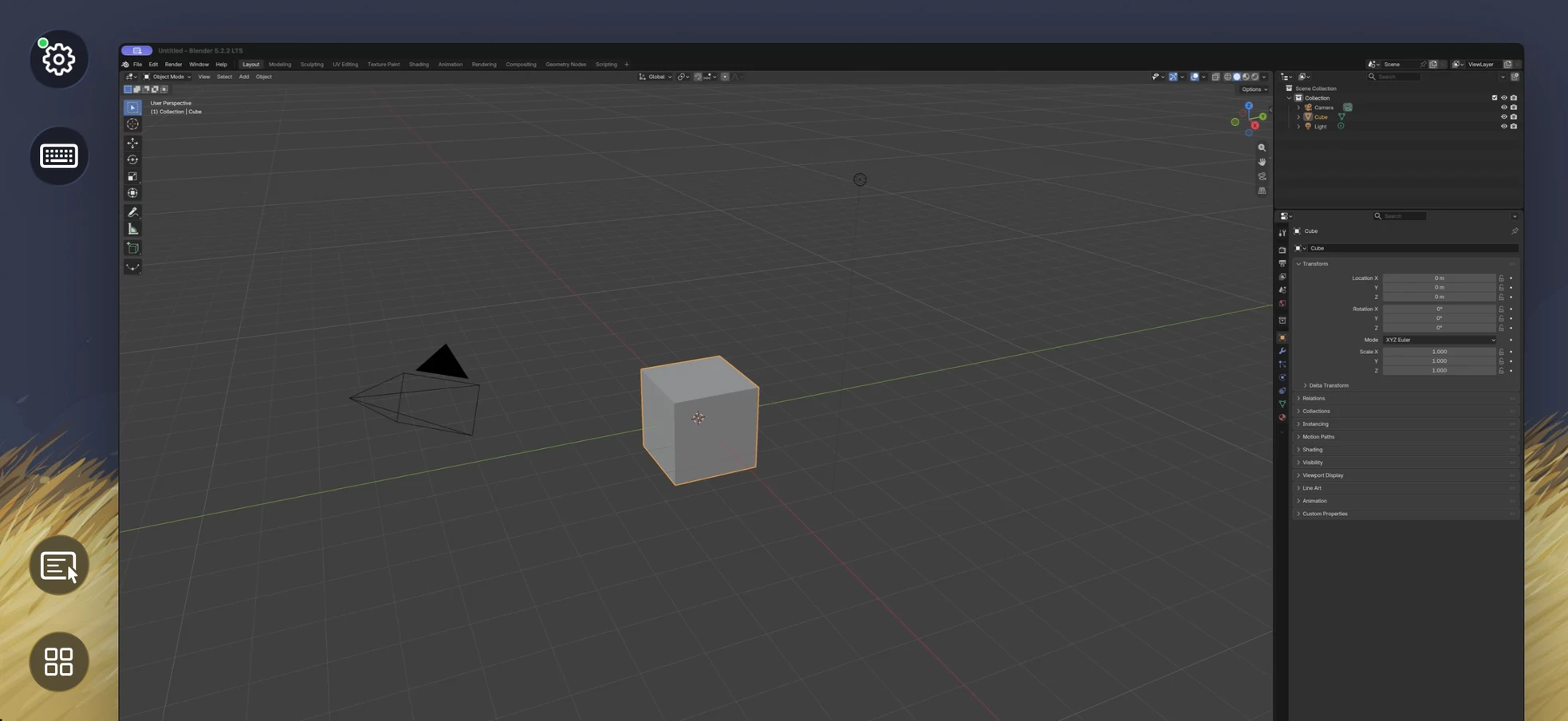
A render can keep your Mac busy long after you leave the room. Open the same Blender window on your iPhone or iPad to check progress, inspect the scene, or make a quick adjustment with remote input.
- Check the viewport and scene layout
- Watch a render's progress
- Access the same project and add-ons on your Mac
Use Blender on iPad
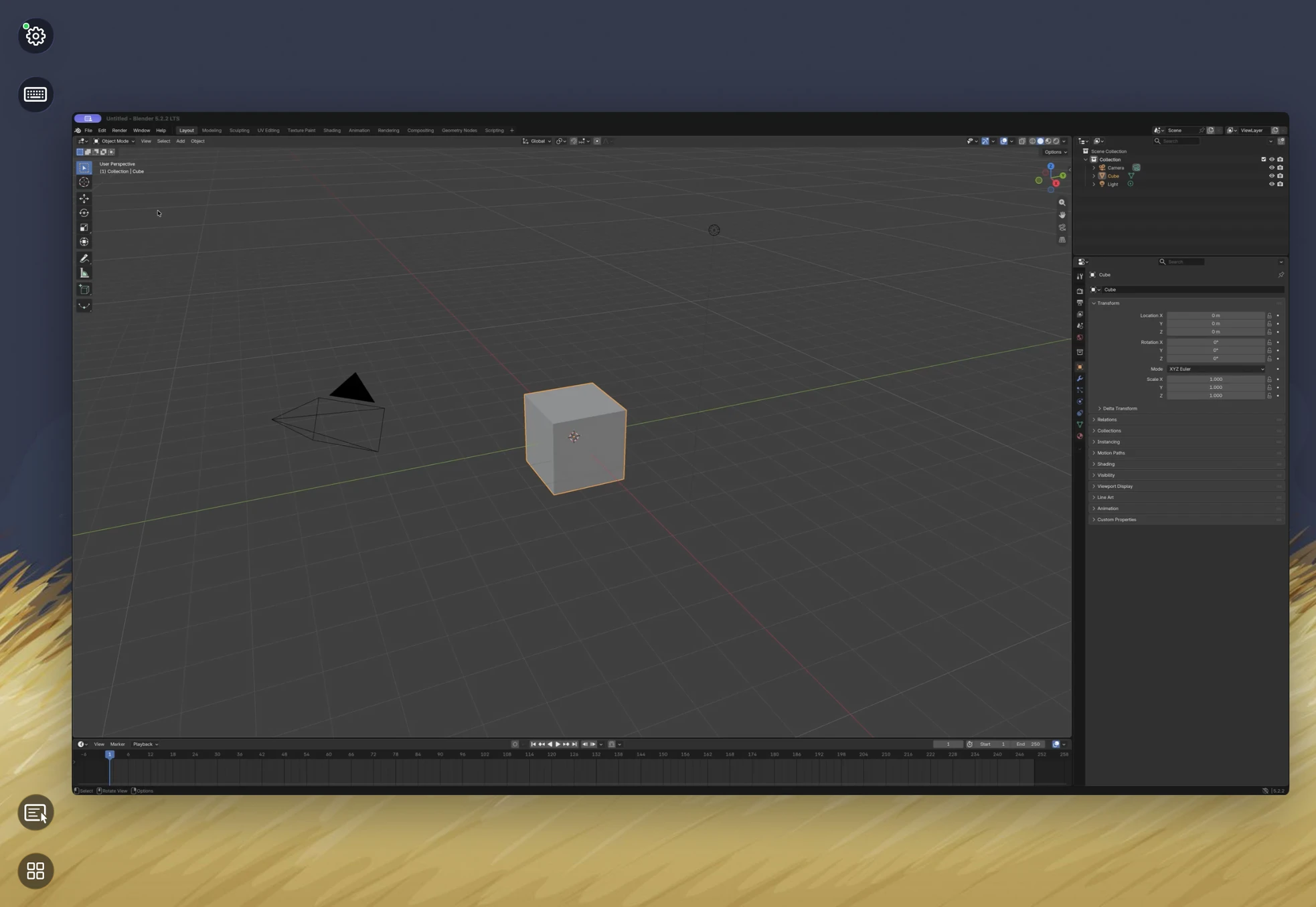
The larger iPad screen gives the viewport and scene controls more room. Open the same scene on your Mac to review a composition or follow a render without moving the project. Detailed modeling still benefits from precise input.
How to get Blender on your iPhone or iPad
- Open Blender on your Mac and install the free Apperture Mac host.
- Get Apperture on your iPhone or iPad, then pair with your Mac using its QR code.
- Connect to your Mac and choose the Blender window. Use landscape orientation for more room.
Keep your Mac awake and on a network your iPhone or iPad can reach. Start on the same local network; for access away from home, see the Tailscale setup guide.
Can I use Blender on my iPhone or iPad with Apperture?
Yes — by streaming Blender from your Mac with Apperture. The desktop app runs on your Mac; your iPhone or iPad displays its window and sends remote input back. You need a reachable, awake Mac with Blender installed, the free Apperture Mac host, and the Apperture app on your iPhone or iPad.
Blender still runs on your Mac; Apperture streams its desktop interface. Detailed modeling and sculpting are more comfortable with a larger screen and precise input. Blender downloads and supported platforms.
Blender is a trademark of its owner. Apperture is an independent app and is not affiliated with or endorsed by Blender's developer.